FreeImageMerge is a free online image merger that lets you combine images right in your browser. Merge photos side by side, stack them vertically, line them up in a grid or place them freely on one board, then download one clean picture — no signup, no watermark and no upload. Need a quick fix first? Crop, rotate, trim or batch-resize on the same page.
How to Merge Images Online in 4 Steps

1. Add your images
Drop files onto the board, click Choose images, or paste a screenshot with Ctrl+V (⌘+V on a Mac). On a phone, tap the paste icon above the drop zone instead. JPG, PNG, WebP, GIF, AVIF, BMP, SVG and iPhone HEIC photos all work; animated GIFs use their first frame. Want to see how it works first? Click Try sample images, or pick one of the examples under the drop zone.

2. Put them in order
Every thumbnail in the film strip under the board carries a frame number — 01, 02, 03 — and that number is the merge order. Drag a thumbnail to move it, or select it and press Shift + ← or →. Click the × on a frame to take an image out.

3. Choose a layout and style
Pick Side by side, Vertical, Grid or As placed. Choose how images of different sizes are matched, then adjust Gap, Border, Corners and the background color. To number or title each image, go to Labels and pick 1, 2, 3…, A, B, C…, File names or Custom; each label sits in the top-left corner of its image. To write a title or note anywhere on the picture, click Add text and drag the text where you want it. The preview updates after every change, and the undo arrow (Ctrl+Z) takes back any step.

4. Download or copy
Choose PNG, JPG or WebP, then set Quality (for JPG and WebP) and Scale (0.5×, 1× or 2×). Before you save, the tool shows the final size in pixels and an estimated file size. If the file has to stay under an upload limit, pick a File size limit such as Under 200 KB. Click Download to save the file, or Copy to paste the merged image straight into a chat, email or document.
How to Merge Two Pictures into One
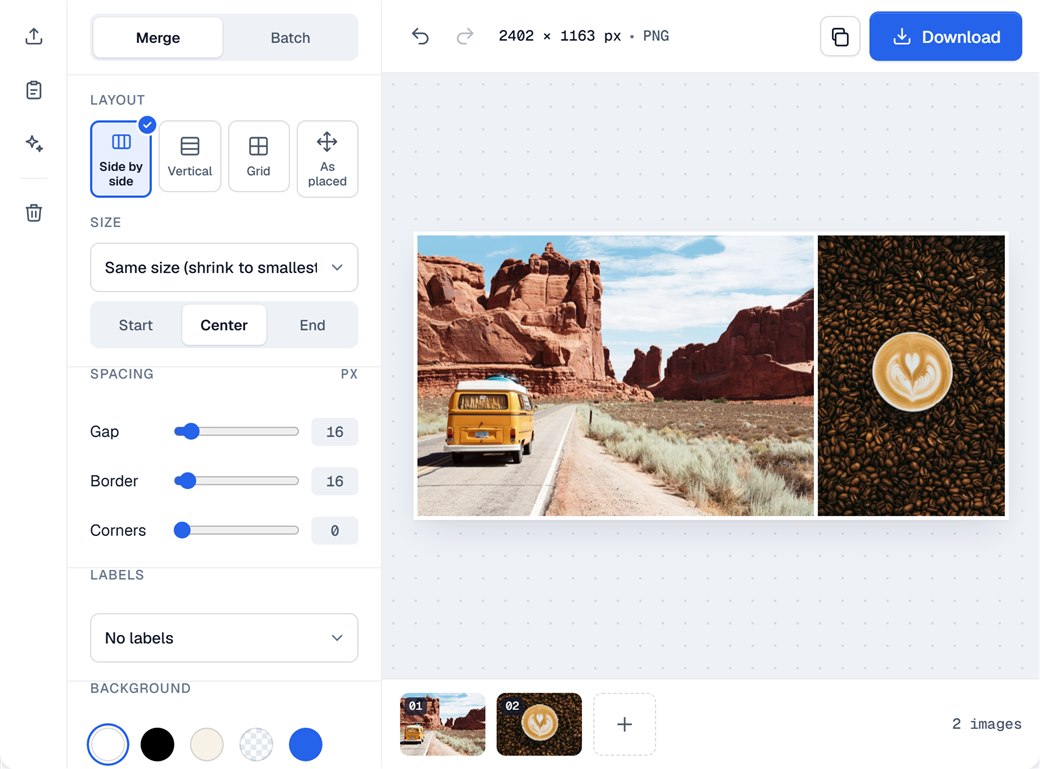
The most common job is to combine two photos into one: two product shots, two screenshots of a conversation, or two documents you need in a single file. Add both pictures and keep the layout on Side by side. With Size set to Same size (shrink to smallest), both pictures end up the same height and the smaller one is never stretched. Add a small Gap with a white or black background for a clean divider line.
To merge two photos one above the other, switch to Vertical. The same size setting now matches their widths, so a tall phone screenshot and a wide photo line up neatly. Making a before and after comparison or a post for Instagram? The side by side photo maker starts with Before / After labels and offers 1:1, 4:5 and 16:9 frames.
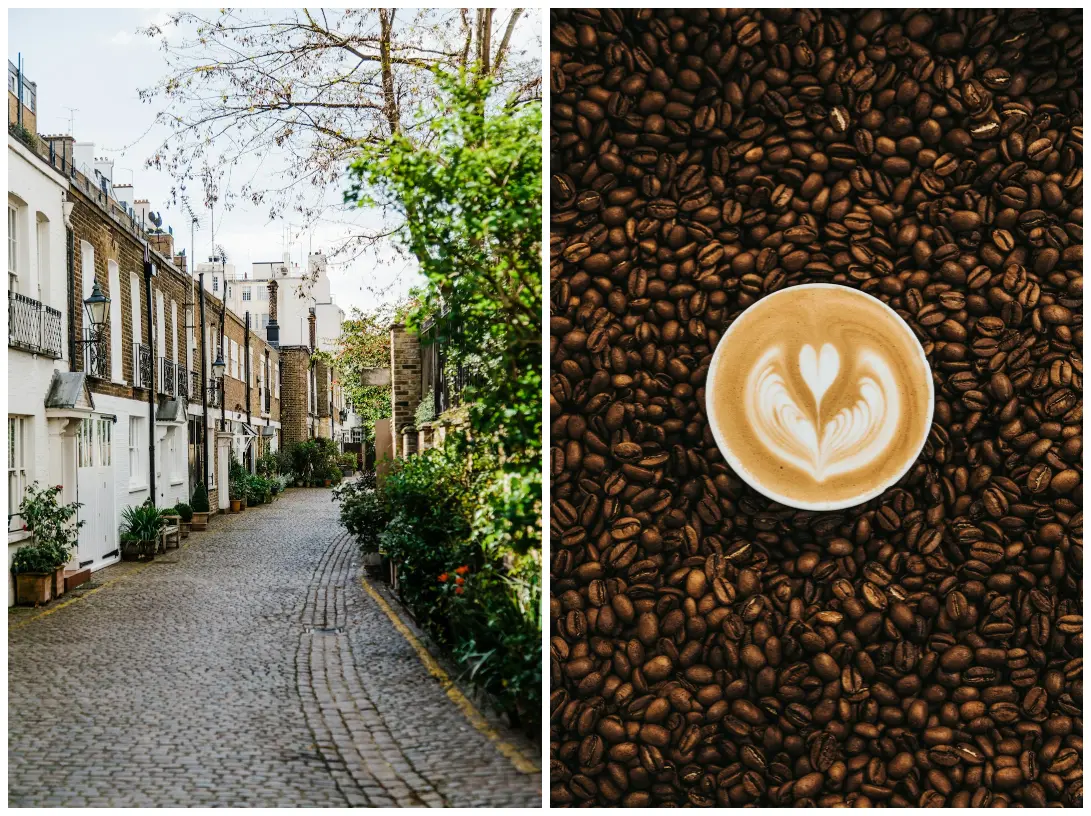
Four Ways to Combine Images
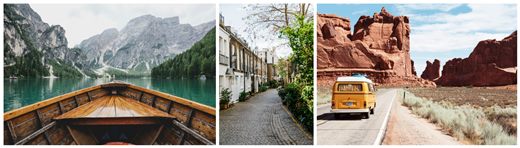
Side by side puts every image in one row, left to right. It suits product angles, document pages and panoramas you shot in pieces. For two-photo posts in social media sizes, open the before and after photo maker.
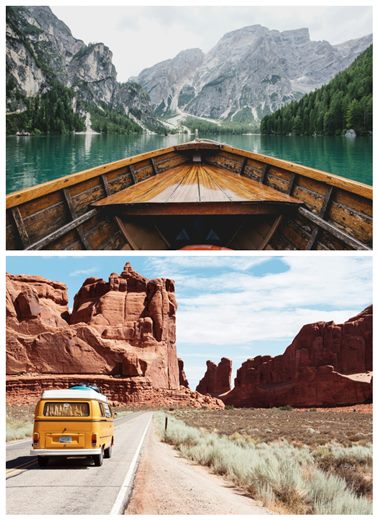
Vertical stacks images top to bottom in one column. Use it to merge screenshots into one long image, combine receipt photos or build a step-by-step guide. On an empty board, click the Long screenshot example to see it in action.
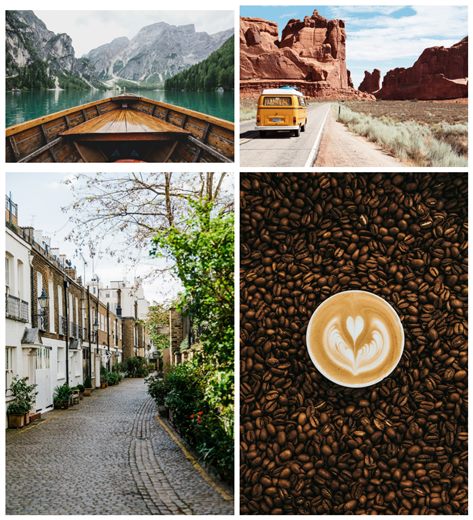
Grid fills rows and columns, from 1 to 10 columns wide. It makes photo collages, contact sheets and mood boards. Images fill the grid in frame-number order, so changing the order in the film strip changes the grid.
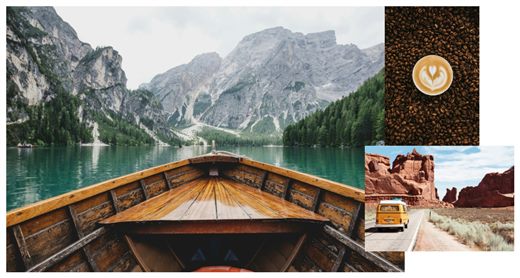
As placed lets you drag each image anywhere on the board, where it snaps to the edges and centers of the others, and resize it from a corner while keeping its proportions. Use it for layouts that don't fit a row or a grid — a large main photo with two small ones beside it, for example.
Make the Merged Image Look Neat
Photos taken on different devices rarely share the same size. The Size setting decides how they are matched:
- Same size (shrink to smallest) scales larger images down to match the smallest one. Nothing is enlarged, so nothing turns blurry. This is the safest default.
- Same size (grow to largest) scales smaller images up to match the largest one. The output is bigger, but enlarged images may look soft.
- Keep original sizes draws every image at its real pixel size. Use Start, Center or End to align images that end up different heights or widths.
Then add finishing touches. Gap sets the space between images and Border the space around the edge; both take the background color. Corners rounds the corners of each image. The background can be transparent, white, black, a warm paper tone or any custom color. JPG cannot store transparency, so a transparent background is saved as white when you choose JPG.
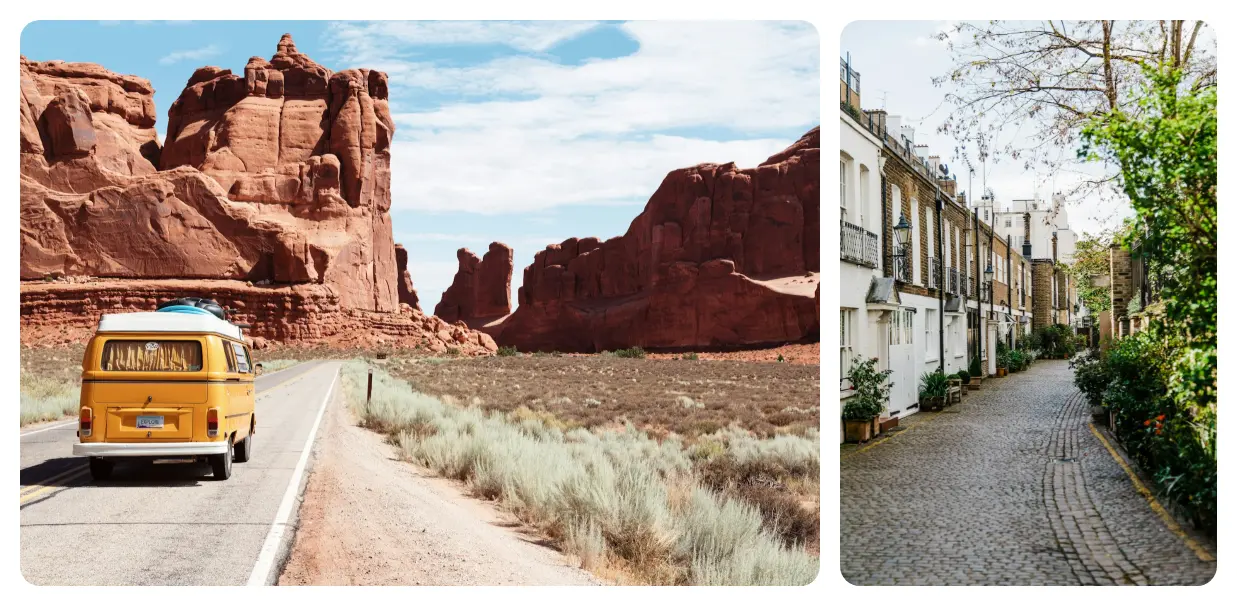
Merge iPhone HEIC Photos Without Converting
iPhones save photos as HEIC by default, and many websites refuse them. You don't need to convert them first: drop HEIC files on the board like any other image. If your browser can open HEIC itself, it does. If not, the tool downloads a free HEIC decoder the first time you add one — this takes a few seconds — and then converts each photo on your device. Your photos are not uploaded at any point.
If you'd rather have your iPhone save JPG photos from now on, go to Settings → Camera → Formats and choose Most Compatible.
Crop, Rotate and Trim Before Merging
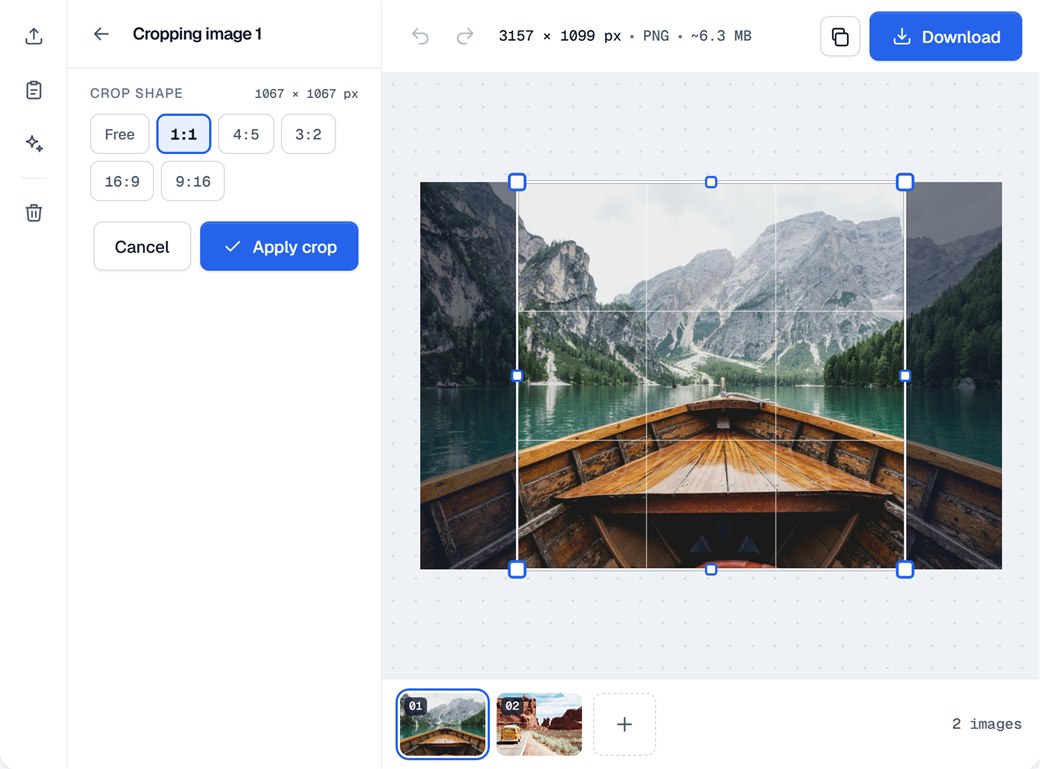
Need to tidy one photo before you combine it with the rest? Click any image on the board, or its thumbnail, to open its single-image tools:
- Crop freely or to a fixed shape: 1:1, 4:5, 3:2, 16:9 or 9:16.
- Rotate left or Rotate right in 90° steps, or mirror with Flip across and Flip down.
- Trim edges removes plain or transparent borders, such as the white margins of a scan.
- Split into pieces cuts one image into 2 across, 2 down, 2 × 2 or 3 × 3 tiles.
Edits apply only to the copy on the board, never to your original files. Click the undo arrow (Ctrl+Z) to reverse a step, and the back arrow (or Esc) to return to the merge settings.
Batch Resize, Convert and Compress, Then Download a ZIP
If you need separate resized files instead of one merged picture, add your images and switch the toggle at the top of the panel from Merge to Batch. Start from the Web-friendly WebP or Email-size JPG preset, or set your own rules: limit the width, height or long edge (images are only scaled down), convert to PNG, JPG or WebP, and set a quality level or a maximum file size. Change any setting and the preset becomes Custom. Two or more images download together in a single ZIP file.
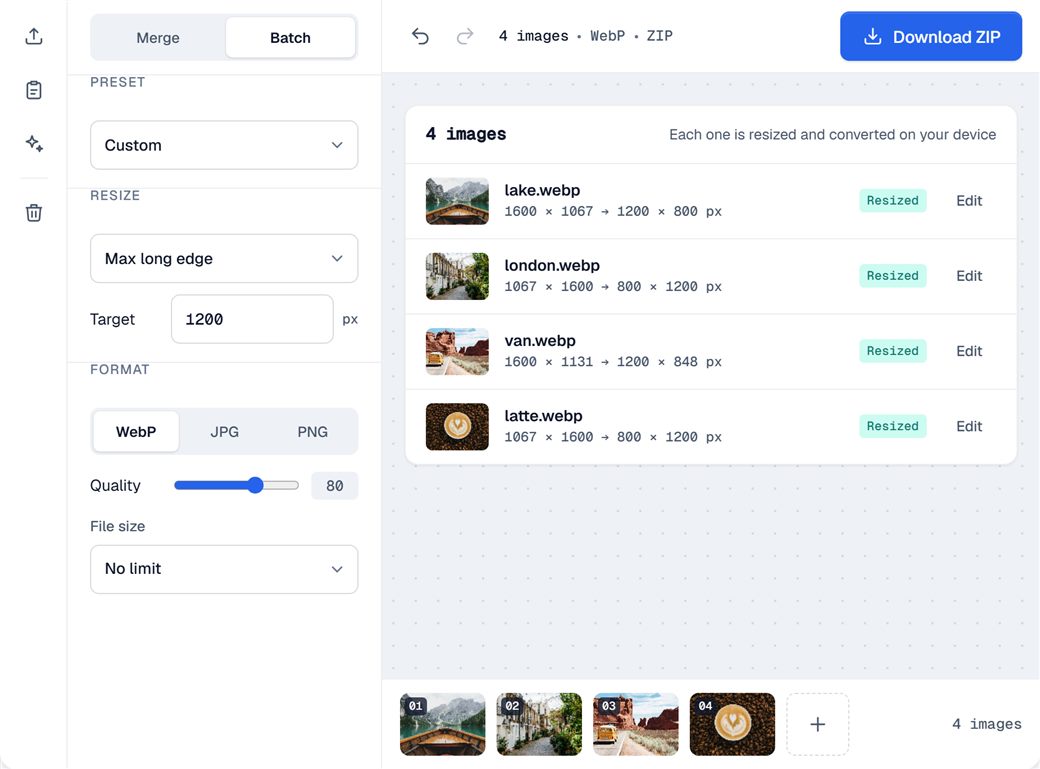
Image Merger, Image Combiner or Photo Joiner?
People search for this kind of tool under many names — image merger, image combiner, picture merger, photo joiner or photo stitcher — and they all mean the same thing: joining two or more pictures into one file. FreeImageMerge works as a free image combiner for everyday jobs: merge photos for a social media post, merge screenshots into one long image, combine images for a school report, or put product photos together for a listing.
What it doesn't do: it doesn't blend photos into each other, and it doesn't use AI to change what's in your pictures. Your images come out exactly as they went in, only arranged together.
How Many Images and How Large?
There is no limit on how many images you add. What limits you is the size of the final picture, because each browser can only draw an image up to a certain size:
| Device | Largest total area | Longest side |
|---|---|---|
| iPhone and iPad | 16,777,216 pixels (for example, 4096 × 4096) | 16,384 px |
| Computers and Android | 100,000,000 pixels (for example, 10,000 × 10,000) | 32,000 px |
On a computer, 32,000 px is enough to stack about twelve full-height iPhone screenshots (1170 × 2532 px each) into one long strip. If your merged image would go past the limit, the tool scales the export down until it fits and shows “reduced to fit your browser's limit” next to the output size. Very large boards also use a lot of memory; if a phone struggles, set Scale to 0.5× under Export, or merge fewer images at a time.
PNG vs JPG vs WebP: Which Format to Download
PNG is lossless: every pixel is saved exactly. Pick it when you merge screenshots, text, diagrams or anything with a transparent background. For merged photos, PNG files get very large.
JPG is the safe choice when you combine photos for email, chat or social media: every app opens it and files stay small. A quality setting between 80 and 90 keeps photos sharp. It cannot store transparency, so a transparent gap or border is saved as white.
WebP usually makes smaller files than JPG at the same visual quality, and it keeps transparency. Use it for merged images going on a website or blog. All current major browsers open WebP, but some older apps and printing services don't.
How big is the difference? We merged the sample images in Chrome at 1× scale and quality 90:
| What was merged | Output size | PNG | JPG | WebP |
|---|---|---|---|---|
| Four photos side by side | 4533 × 1067 px | 10.1 MB | 1.4 MB | 1.2 MB |
| Three phone screenshots stacked | 780 × 5064 px | 750 KB | 513 KB | 307 KB |
For photos, PNG was about seven times the size of JPG. For screenshots, with their large flat areas, it was only about one and a half times — so PNG is worth it there to keep text crisp. Other browsers produce slightly different sizes. The estimated file size in the bar above the preview updates as you change the format and quality, so you can compare your own images before you save.
If a website or form only accepts files under a certain size, choose a File size limit, from Under 500 KB down to Under 50 KB. For JPG and WebP the tool first lowers the quality, then shrinks the image until it fits; a PNG can only be shrunk. If the limit can't be reached, the tool tells you the smallest size it could achieve. Copy always puts a PNG on your clipboard, whatever limit you choose.
Need a PDF instead? Choose PDF to save the merged picture as one page, or to put each image on its own A4 or US Letter page — see combine images into PDF.

Your Images Never Leave Your Device
Many online image tools upload your files to a server to process them. FreeImageMerge doesn't. Your browser opens, merges and exports the images on your own computer or phone, and the files are never sent to us. That makes it safe for personal photos, ID scans, screenshots of private chats and client work.
Your board is saved automatically in your browser's own storage, so a closed tab or a refresh doesn't lose your work. This saved copy stays on your device; click the trash icon (Clear board) in the toolbar to delete it at any time. In a private or incognito window, the browser deletes it when you close the window. Read the privacy policy for the full details.
Keyboard Shortcuts
| Shortcut | What it does |
|---|---|
| Ctrl+V / ⌘+V | Paste an image from your clipboard |
| Ctrl+Z / ⌘+Z | Undo the last change |
| Ctrl+Shift+Z / ⌘+Shift+Z or Ctrl+Y | Redo |
| Shift+← / → | Move the selected image earlier or later in the film strip |
| Arrow keys (Shift+arrows) | In As placed layout, nudge the selected image by 1 px (10 px) |
| Delete / Backspace | Remove the selected image |
| Ctrl+S / ⌘+S | Download the merged image (in Batch mode, the single file or the ZIP) |
| Esc | Leave cropping, or go back from editing one image to the merge or batch settings |
Ready-made Tools for Common Jobs
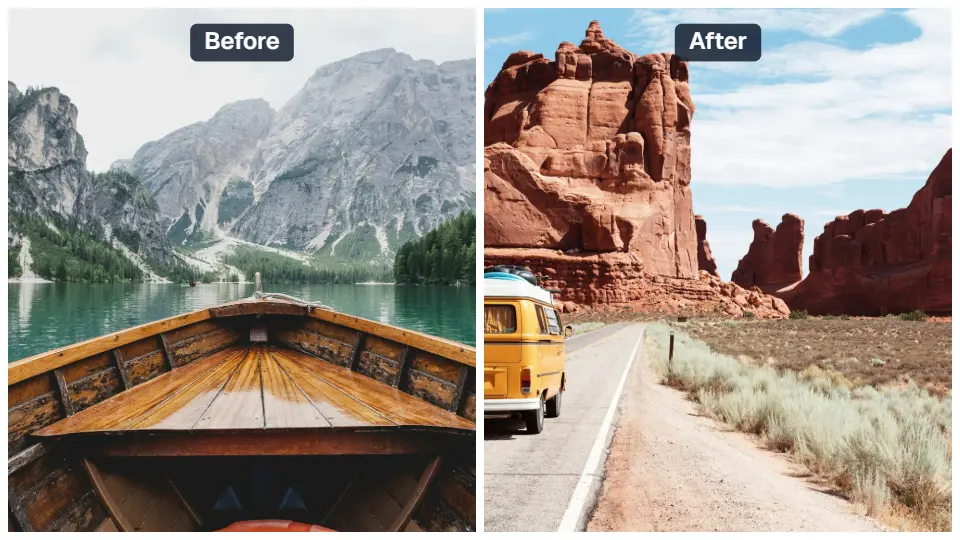 Side by side photo makerTwo photos next to each other, with Before / After labels and sizes for Instagram, Facebook and YouTube thumbnails.Open the tool →
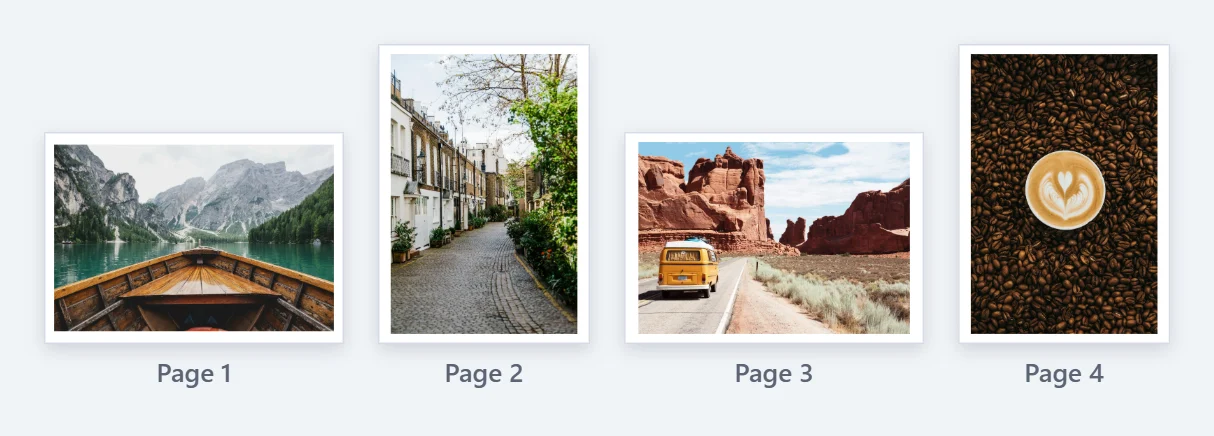 Combine images into PDFEach image on its own A4 or US Letter page, or the whole merged picture on one page, saved as a single PDF.Open the tool →